Enabling parallel development using Git and Save to Folder
This article describes the principles of parallel model development (that is, the ability for multiple developers to work in parallel on the same data model) and the role of Tabular Editor in this regard.
Prerequisites
- The destination of your data model must be one of the following:
- SQL Server 2016 (or newer) Analysis Services Tabular
- Azure Analysis Services
- a Power BI workspace assigned to a Fabric capacity, Power BI Embedded capacity, legacy Premium capacity or Premium Per User license, with XMLA read/write enabled (the default since June 2025)
- Git repository accessible by all team members (on-premises or hosted in Azure DevOps, GitHub, etc.)
TOM as source code
Parallel development has traditionally been difficult to implement on Analysis Services tabular models and Power BI datasets (in this article, we will call both types of models "tabular models" for brevity). With the introduction of the JSON-based model metadata used by the Tabular Object Model (TOM), integrating model metadata in version control has certainly become easier.
The use of a text-based file format makes it possible to handle conflicting changes in a graceful way, by using various diff tools that are often included with the version control system. This type of change conflict resolution is very common in traditional software development, where all of the source code resides in a large number of small text files. For this reason, most popular version control systems are optimized for these types of files, for purposes of change detection and (automatic) conflict resolution.
For tabular model development, the "source code" is our JSON-based TOM metadata. When developing tabular models with earlier versions of Visual Studio, the Model.bim JSON file was augmented with information about who modified what and when. This information was simply stored as additional properties on the JSON objects throughout the file. This was problematic, because not only was the information redundant (since the file itself also has metadata that describes who the last person to edit it was, and when the last edit happened), but from a version control perspective, this metadata does not hold any semantic meaning. In other words, if you were to remove all of the modification metadata from the file, you would still end up with a perfectly valid TOM JSON-file, that you could deploy to Analysis Services or publish to Power BI, without affecting the functionality and business logic of the model.
Just like source code for traditional software development, we do not want this kind of information to "contaminate" our model metadata. Indeed, a version control system gives a much more detailed view of the changes that were made, who made them, when and why, so there is no reason to include it as part of the files being versioned.
When Tabular Editor was first created, there was no option to get rid of this information from the Model.bim file created by Visual Studio, but that has luckily changed in more recent versions. However, we still need to deal with a single, monolithic file (the Model.bim file) containing all of the "source code" that defines the model.
Power BI dataset developers have it much worse, since they do not even have access to a text-based file containing the model metadata. The best they can do is export their Power BI report as a Power BI Template (.pbit) file which is basically a zip file containing the report pages, the data model definitions and the query definitions. From the perspective of a version control system, a zip file is a binary file, and binary files cannot be diff'ed, compared and merged, the same way text files can. This forces Power BI developers to use 3rd party tools or come up with elaborate scripts or processes for properly versioning their data models - especially, if they want to be able to merge parallel tracks of development within the same file.
Tabular Editor aims to simplify this process by providing an easy way to extract only the semantically meaningful metadata from the Tabular Object Model, regardless of whether that model is an Analysis Services tabular model or a Power BI dataset. Moreover, Tabular Editor can split up this metadata into several smaller files using its Save to Folder feature.
What is Save to Folder?
As mentioned above, the model metadata for a tabular model is traditionally stored in a single, monolithic JSON file, typically named Model.bim, which is not well suited for version control integration. Since the JSON in this file represents the Tabular Object Model (TOM), it turns out that there is a straightforward way to break the file down into smaller pieces: The TOM contains arrays of objects at almost all levels, such as the list of tables within a model, the list of measures within a table, the list of annotations within a measure, etc. When using Tabular Editor's Save to Folder feature, these arrays are simply removed from the JSON, and instead, a subfolder is generated containing one file for each object in the original array. This process can be nested. The result is a folder structure, where each folder contains a set of smaller JSON files and subfolders, which semantically contains exactly the same information as the original Model.bim file:
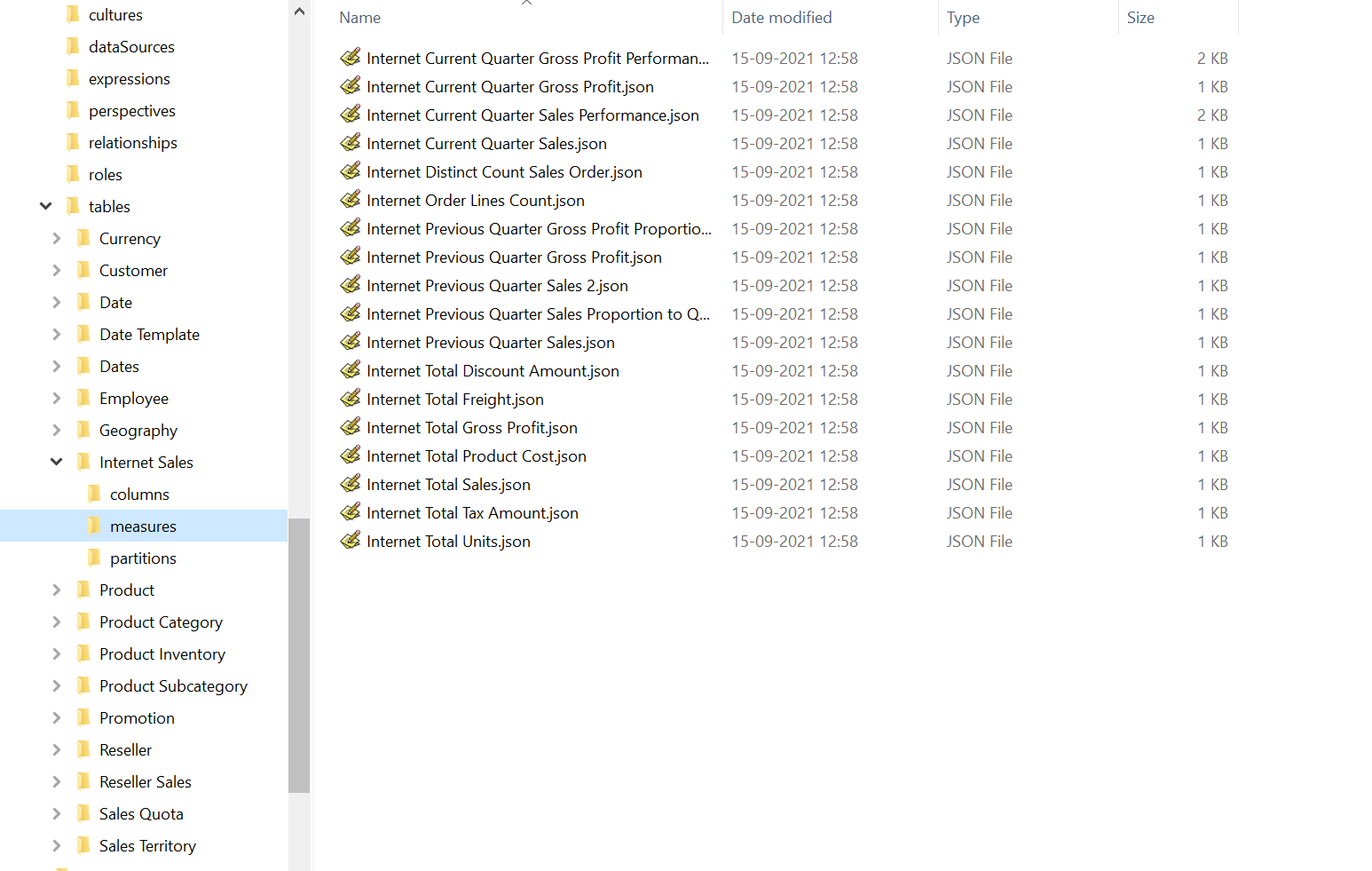
The names of each of the files representing individual TOM objects are simply based on the Name property of the object itself. The name of the "root" file is Database.json, which is why we sometimes refer to the folder-based storage format as simply Database.json.
Pros of using Save to Folder
Below are some of the advantages of storing the tabular model metadata in this folder based format:
- Multiple smaller files work better with many version control systems than few large files. For example, git stores snapshots of modified files. For this reason alone, it makes sense why representing the model as multiple smaller files is better than storing it as a single, large file.
- Avoid conflicts when arrays are reordered. Lists of tables, measures, columns, etc., are represented as arrays in the Model.bim JSON. However, the order of objects within the array does not matter. It is not uncommon for objects to be reordered during model development, for example due to cut/paste operations, etc. With Save to Folder, array objects are stored as individual files, so the arrays are no longer change tracked, reducing the risk of merge conflicts.
- Different developers rarely change the same file. As long as developers work on separate parts of the data model, they will rarely make changes to the same files, reducing the risk of merge conflicts.
Cons of using Save to Folder
As it stands, the only disadvantage of storing the tabular model metadata in the folder based format, is that this format is used exclusively by Tabular Editor. In other words, you can not directly load the model metadata into Visual Studio from the folder based format. Instead, you would have to temporarily convert the folder based format to the Model.bim format, which can of course be done using Tabular Editor.
Configuring Save to Folder
One size rarely fits all. Tabular Editor has a few configuration options that affect how a model is serialized into the folder structure. In Tabular Editor 3, you can find the general settings under Tools > Preferences > Save-to-folder. Once a model is loaded in Tabular Editor, you can find the specific settings that apply to that model under Model > Serialization options.... The settings that apply to a specific model are stored as an annotation within the model itself, to ensure that the same settings are used regardless of which user loads and saves the model.
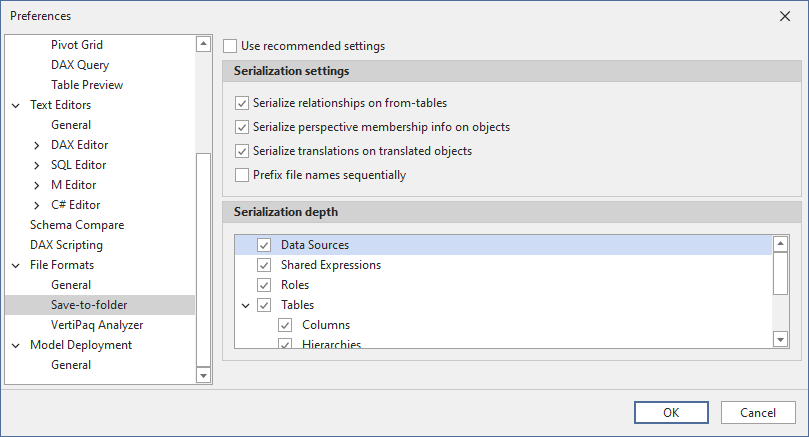
Serialization settings
- Use recommended settings: (Default: checked) When this is checked, Tabular Editor uses the default settings when saving a model as a folder structure for the first time.
- Serialize relationships on from-tables: (Default: unchecked) When this is checked, Tabular Editor stores relationships as an annotation on the table at the "from-side" (typically the fact table) of the relationship, instead of storing them at the model level. This is useful when in the early development phase of a model, where table names are still subject to change quite often.
- Serialize perspective membership info on objects: (Default: unchecked) When this is checked, Tabular Editor stores information about which perspectives an object (table, column, hierarchy, measure) belongs to, as an annotation on that object, instead of storing the information at the perspective level. This is useful when object names are subject to change, but perspective names are finalised.
- Serialize translations on translated objects: (Default: unchecked) When this is checked, Tabular Editor stores metadata translations as an annotation on each translatable object (table, column, hierarchy, level, measure, etc.), instead of storing the translations at the culture level. This is useful when object names are subject to change.
- Prefix file names sequentially: (Default: unchecked) In cases where you want to retain the metadata ordering of array members (such as the order of columns in a table), you can check this to have Tabular Editor prefix the filenames with a sequential integer based on the object's index in the array. This is useful if you use the default drillthrough feature in Excel, and would like columns to appear in a certain order in the drillthrough.
Note
The main purpose of the settings described above, is to reduce the number of merge conflicts encountered during model development, by adjusting how and where certain model metadata is stored. In the early phases of model development, it is not uncommon for objects to be renamed often. If a model already has metadata translations specified, every object rename would cause at least two changes: One change on the object being renamed, and one change for every culture that defines a translation on that object. When Serialize translations on translated objects is checked, there would only be a change on the object being renamed, as that object also includes the translated values (since this information would be stored as an annotation).
Serialization depth
The checklist allows you to specify which objects will be serialized as individual files. Note that some options (perspectives, translations, relationships) may not be available, depending on the settings specified above.
In most cases, it is recommended to always serialize objects to the lowest level. However, there may be special cases where this level of detail is not needed.
Power BI and version control
As mentioned above, integrating a Power BI report (.pbix) or Power BI template (.pbit) file in version control, does not enable parallel development or conflict resolution, due to these files using a binary file format. At the same time, we have to be aware of the current limitations of using Tabular Editor (or other third party tools) with Power BI Desktop or the Power BI XMLA endpoint respectively.
These limitations are:
- When using Tabular Editor as an external tool for Power BI Desktop, not all modeling operations are supported.
- Tabular Editor can extract model metadata from a .pbix file loaded in Power BI Desktop, or directly from a .pbit file on disk, but there is no supported way to update model metadata in a .pbix or .pbit file outside of Power BI Desktop.
- Once any changes are made to a Power BI dataset through the XMLA endpoint, that dataset can no longer be downloaded as a .pbix file.
To enable parallel development, we must be able to store the model metadata in one of the text-based (JSON) formats mentioned above (Model.bim or Database.json). There is no way to "recreate" a .pbix or .pbit file from the text-based format, so once we decide to go this route, we will no longer be able to use Power BI Desktop for editing the data model. Instead, we will have to rely on tools that can use the JSON-based format, which is exactly the purpose of Tabular Editor.
Warning
If you do not have access to a workspace assigned to a capacity or Premium Per User license, you will not be able to publish the model metadata stored in the JSON files, since this operation requires access to the XMLA endpoint.
Note
Power BI Desktop is still needed for purpose of creating the visual part of the report. It is a best practice to always separate reports from models. In case you have an existing Power BI file that contains both, this blog post (video) describes how to split it into a model file and a report file.
Tabular Editor and git
Git is a free and open source distributed version control system designed to handle everything from small to very large projects with speed and efficiency. It is the most popular version control system right now, and it is available through multiple hosted options, such as Azure DevOps, GitHub, GitLab and others.
A detailed description of git is outside the scope of this article. There are, however, many resources available online if you want to learn more. We recommend the Pro Git book for reference.
Note
Tabular Editor 3 does not currently have any integration with git or other version control systems. To manage your git repository, commit code changes, create branches, etc., you will have to use the git command line or another tool, such as the Visual Studio Team Explorer or TortoiseGit.
As mentioned earlier, we recommend using Tabular Editor's Save to Folder option when saving model metadata to a git code repository.
Branching strategy
What follows is a discussion of branching strategies to employ when developing tabular models.
The branching strategy will dictate what the daily development workflow will be like, and in many cases, branches will tie directly into the project methods used by your team. For example, using the agile process within Azure DevOps, your backlog would consist of Epics, Features, User Stories, Tasks and Bugs.
In the agile terminology, a User Story is a deliverable, testable piece of work. The User Story may consist of several Tasks — smaller pieces of work performed by a developer before the User Story can be delivered. In an ideal world, all User Stories are broken down into manageable tasks, each taking only a couple of hours to complete, adding up to no more than a handful of days for the entire User Story. This makes a User Story an ideal candidate for a short-lived feature branch, where the developer makes one or more commits per task before the branch is merged and the code deployed for testing.
Determining a suitable branching strategy depends on many different factors: team size, release cadence, regulatory constraints, how many semantic models you maintain, and how mature your CI/CD setup already is. This article presents three strategies:
- GitHub Flow + Octopus Merge — our recommended approach for most semantic model teams, and the primary focus of this article.
- GitFlow — a valid alternative, particularly suited to teams with formal, infrequent release cycles or regulatory sign-off requirements.
- Plain trunk-based development — the simplest approach, worth understanding as a baseline even if most BI teams will want the additional structure GitHub Flow provides.
Note
Tabular Editor is agnostic to branching strategy. Save to Folder and Workspace Mode work identically regardless of which of the strategies below you choose — the recommendation in this article is based on patterns we've seen succeed across enterprise engagements, not a constraint imposed by the tool.
GitHub Flow + Octopus Merge
For teams building semantic models with Tabular Editor and Power BI, we recommend GitHub Flow combined with an Octopus Merge pattern for continuous integration testing.
GitHub Flow is a lightweight branching model with a single hard rule: main is always deployable. All work happens on a short-lived feature branch created off main; nobody commits directly to main; branches are merged back via pull request after review and automated checks pass. Unlike GitFlow, there's no develop branch and no separate branch per environment — environment promotion (dev → test → UAT → production) is handled by the deployment pipeline, not by long-lived branches.
gitGraph
    commit id: "initial"
    branch "feature/add-tax-calculation"
    commit id: "add measure"
    commit id: "add column"
    checkout main
    merge "feature/add-tax-calculation" id: "PR merged: tax calculation"
    branch "feature/fix-rls"
    commit id: "fix role"
    checkout main
    merge "feature/fix-rls" id: "PR merged: fix RLS"
    branch "feature/new-report-page"
    commit id: "wip"
    checkout main
    commit id: "hotfix"
    merge "feature/new-report-page" id: "PR merged: new report page"
main stays on a single line and is always deployable; short feature branches fork off it and merge straight back via pull request. Contrast this with the GitFlow diagram further down the page, which has five parallel, long-lived lines.
On its own, GitHub Flow doesn't answer a question specific to BI teams: what does your shared test environment reflect at any given moment, when several developers each have an open pull request? Octopus Merge answers this: a CI pipeline continuously merges every currently open pull request into a disposable branch and deploys the result to a shared test environment — so business users always validate the combination of everything in progress, not just one feature in isolation. See GitHub Flow and the Octopus Merge pattern for how the pattern works and how to build it.
A few reasons this combination fits semantic model development particularly well:
- Simpler mental model. Two branch concepts instead of GitFlow's five means less onboarding overhead, particularly on teams that include report authors and business analysts alongside model developers.
mainis always deployable. If you need to ship an urgent fix — a broken measure, a security-related RLS change — you don't need to reason about which of several long-lived branches currently reflects production.- Environment promotion lives in the pipeline, not the branch structure. Adding a new environment is a pipeline change, not a new permanent branch every developer has to remember to merge into.
- Short-lived branches reduce merge conflicts — important for Octopus Merge, since it merges every open branch together for integration testing. The shorter each branch lives, the smaller the surface area for conflicts.
- Better fit for continuous delivery of data products than GitFlow's versioned release-train model, since semantic models tend to evolve incrementally rather than ship in discrete releases.
None of this means GitFlow is wrong — see GitFlow branching and deployment environments below for when it's still a good fit.
Key principles
mainis always in a deployable state.- Feature branches are short-lived and independent.
- The test environment always reflects the combination of everything currently in progress — not just one feature in isolation. See GitHub Flow and the Octopus Merge pattern for how.
- Fabric Git integration should not be enabled on any workspace used for Tabular Editor workspace databases — Tabular Editor writes to workspace databases directly through the XMLA endpoint, and those writes have no relationship to your Git branches. This is also called out in the Workspace Mode documentation.
GitFlow branching and deployment environments
GitFlow remains a solid choice for teams with a genuine need for the structure it provides — for example, formal versioned releases, regulatory sign-off gates tied to specific branches, or infrequent (e.g. monthly or quarterly) release cycles where a persistent develop branch and release branches map naturally onto your process. If that describes your team, the approach below is well worth using.
The strategy described below is based on GitFlow by Vincent Driessen.
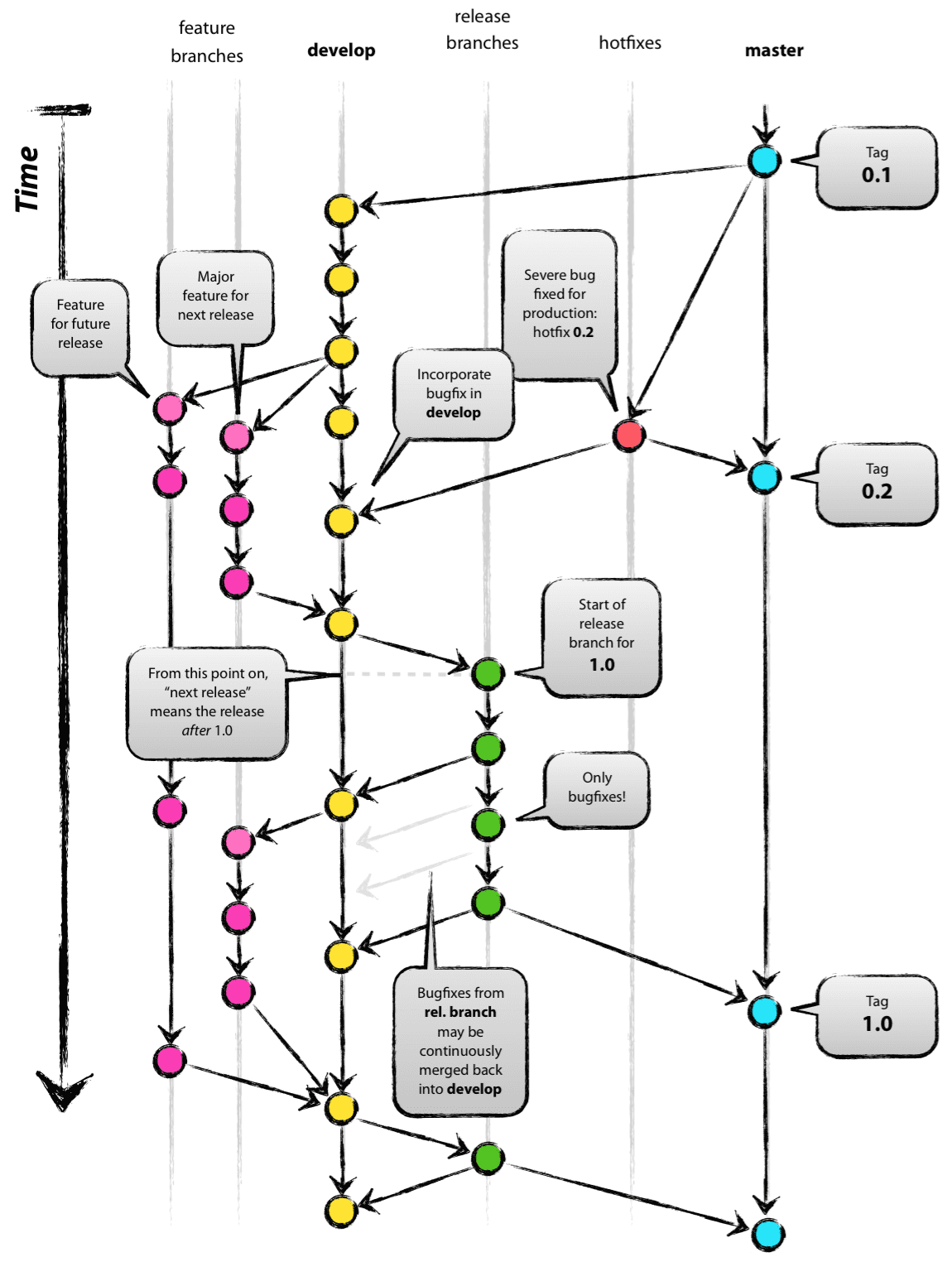
Implementing a branching strategy similar to this can help solve some of the DevOps problems typically encountered by BI teams, provided you put some thought into how the branches correlate to your deployment environments. In an ideal world, you would need at least 4 different environments to fully support GitFlow:
- The production environment, which should always contain the code at the HEAD of the master branch.
- A canary environment, which should always contain the code at the HEAD of the develop branch. This is where you typically schedule nightly deployments and run your integration testing, to make sure that the features going into the next release to production play nicely together.
- One or more UAT environments where you and your business users test and validate new features. Deployment happens directly from the feature branch containing the code that needs to be tested. You will need multiple test environments if you want to test multiple new features in parallel. With some coordination effort, a single test environment is usually enough, as long as you carefully consider the dependencies between your BI tiers.
- One or more sandbox environments where you and your team can develop new features, without impacting any of the environments above. As with the test environment, it is usually enough to have a single, shared, sandbox environment.
We must emphasize that there is really no "one-size-fits-all" solution to these considerations. Maybe you are not building your solution in the Cloud, and therefore do not have the scalability or flexibility to spin up new resources in seconds or minutes. Or maybe your data volumes are very large, making it impractical to replicate environments due to resource/economy/time constraints.
Even if you do need to support parallel development, you may find that multiple developers can easily share the same development or sandbox environment, without encountering too much trouble. Specifically for tabular models, though, we recommend that developers still use individual workspace databases to avoid "stepping over each others toes."
Note
If you're evaluating GitFlow primarily because you need a shared, always-current test environment reflecting in-progress work, consider whether GitHub Flow + Octopus Merge might achieve the same outcome with less branch-management overhead. GitFlow's develop/canary branch and Octopus Merge's disposable test branch solve a similar problem in different ways.
Trunk-based development
Trunk-based development is the simplest possible branching model: developers commit small, frequent changes either directly to main, or via very short-lived feature branches that are merged back within hours. Microsoft recommends trunk-based development (video) generally for agile, continuous delivery of small increments.
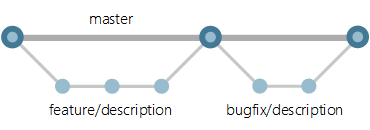
In its purest form, trunk-based development can run into real friction for BI teams:
- New features often require prolonged testing and validation by business users, which may take several weeks — so you need somewhere for in-progress work to be validated that isn't
mainitself. - BI solutions are multi-tiered (Data Warehouse/ETL, Master Data Management, semantic layer, reports), with dependencies between layers that complicate testing and deployment.
- A BI team may maintain several semantic models at different maturity stages and paces.
- Data — not just code — has to be loaded, ETL'd, and processed to make a change testable. Including full data refreshes in every build could blow up pipeline runtimes from minutes to hours, and isn't always feasible at all for very large fact tables.
GitHub Flow + Octopus Merge, described above, is best understood as a refinement of trunk-based development that directly addresses these concerns — rather than a departure from it. It keeps trunk-based development's core simplicity (one long-lived branch, short-lived feature branches, no release trains) while adding exactly the missing piece BI teams need: a shared test environment, populated by the pipeline rather than by a long-lived branch, that always reflects the current combined state of in-progress work. If you're choosing between the three strategies on this page, GitHub Flow + Octopus Merge is generally where we'd point a team that likes the simplicity of trunk-based development but has run into the limitations above.
Common workflow
Assuming you already have a git repository set up and aligned to your branching strategy, adding your tabular model "source code" to the repository is simply a matter of using Tabular Editor to save the metadata to a new branch in a local repository. Then, you stage and commit the new files, push your branch to the remote repository, and create a pull request to get your branch merged into the main branch.
The exact commands are the same regardless of which strategy above you choose — what differs is what happens after the pull request is opened (see GitHub Flow and the Octopus Merge pattern for the GitHub Flow case, or your release/canary process for GitFlow). In general, the workflow looks like this:
Before starting work on a new feature, create a new feature branch in git:
git checkout main
git pull
git checkout -b feature/add-tax-calculation
Open your model metadata from the local git repository in Tabular Editor. Ideally, use a workspace database, to make it easier to test and debug DAX code.
Make the necessary changes to your model using Tabular Editor. Continuously save the changes (CTRL+S). Regularly commit code changes to git after you save, to avoid losing work and to keep a full history of all changes that were made:
git add .
git commit -m "Description of what was changed and why since last commit"
git push
If you are not using a workspace database, use Tabular Editor's Model > Deploy... option to deploy to a sandbox/development environment, in order to test the changes made to the model metadata.
When done, and all code has been committed and pushed to the remote repository, you submit a pull request in order to get your code integrated with the main branch. If a merge conflict is encountered, you will have to resolve it locally, using for example the Visual Studio Team Explorer or by simply opening the .json files in a text editor to resolve the conflicts (git inserts conflict markers to indicate which part of the code has conflicts).
Once all conflicts are resolved, there may be a process of code review and automated build/test execution — including, if you're using the GitHub Flow approach above, the Octopus Merge test deployment — before the pull request can be completed.
We present more details about how to configure git branch policies, set up automated build and deployment pipelines, etc. using Azure DevOps and GitHub Actions in the following articles. Similar techniques can be used in other automated build and git hosting environments, such as TeamCity, GitLab, etc.